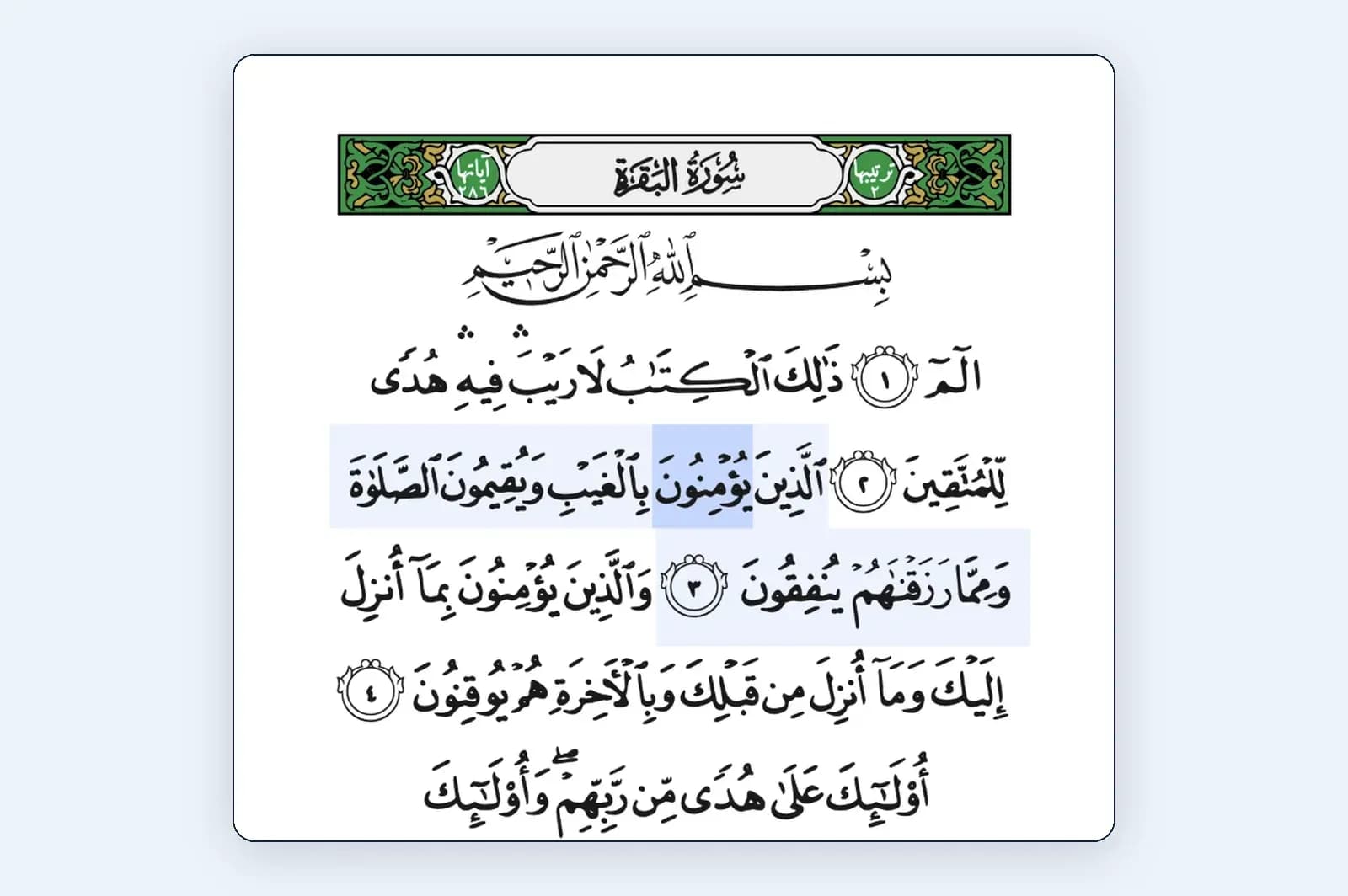
A Quran app needs to work through the actions you actually use: opening a passage, identifying an ayah, starting recitation playback and finding your place again. A clear home screen is only the beginning. Before committing your study routine to an app, try one complete reading journey with your usual screen reader and device. Write down which actions work, which require extra effort and which leave you unable to continue without visual assistance.
Choose a short familiar passage for the check, together with a translation you can identify. Familiarity helps you notice the interface rather than spend the whole attempt deciding where you are in the text. Use a realistic task: open that passage, hear its reference, reach the translation and return to the passage list. Keep the task small enough to repeat after a setting or app update. A general impression such as easy to use is less useful than this concrete route.
Prepare your usual screen-reader setup
Apple describes VoiceOver as a gesture-based screen reader that announces screen items; its settings include a place to practise gestures. If VoiceOver is new to you, learn its basic interaction before judging an unfamiliar app. For the app check, record the actual device and system version you use. Someone else’s successful route is a helpful lead, but it cannot establish how your own combination behaves.
Google’s TalkBack navigation guide explains exploring items and using reading controls such as headings, words and controls. Apply those options to the reading task you selected. Can you move between meaningful parts of the screen, or does every action require listening through the same long block? Identify the exact point where navigation becomes difficult. A missing useful heading and an unclear button label are different issues that deserve different descriptions.
Check references and reading layers
Begin with the passage selector. Check whether you can identify the surah, choose an ayah and hear the selected reference before entering the reading view. Then move back and confirm where focus returns. A reader who repeatedly loses the selector may spend more effort reopening the passage than studying it. Include the whole path in your check: an accessible reading view is most useful when the route into it can also be followed reliably.
Read the Arabic and translation as separate layers. Listen for a clear boundary between the passage, its reference, the translator’s wording and any commentary. If the interface moves between languages, note what is announced at the transition and whether the selected spoken language suits the text. Record the behaviour instead of assuming that an English-speaking menu will handle Arabic in the way you expect. You can ask for a clearer label without changing or simplifying the Quran text itself.
Follow one complete reading journey
- Find a surah and ayah, then hear the selected reference.
- Distinguish Arabic, translation, commentary and their labels.
- Locate playback, pause it and identify the current passage.
- Open and close a useful panel, then check where focus returns.
- Reopen a saved place and confirm its reference independently.
Now try the checklist with the same short passage. Keep notes about actions rather than assigning a single score to the whole app. One reader may need dependable translation navigation; another may rely on repeating a reciter’s recording. Explain which route matters to you. This gives your comparison a practical basis and helps you recognise whether a later change has addressed the specific obstacle instead of merely making a different screen easier to use.
Test recorded recitation separately from the screen reader’s speech. Speech synthesis announces interface text and may read text content; a chosen reciter’s recording is a different audio source. Listen for which source is active and whether you can pause it without hunting for an unnamed control. Do not use a synthetic voice as the reference for learning Quran pronunciation. Choose an identified recitation recording for listening practice and bring uncertain sounds to a suitable teacher.
Pay attention to what happens when both kinds of sound are available. Can you hear the button’s purpose before activating playback? Does the screen reader make the state of play and pause understandable? After a track ends or the passage changes, can you identify the new position? These questions help you distinguish an audio-control problem from a text-navigation problem. They also let you describe a difficulty without guessing which part of the application’s implementation caused it.
Include panels and return navigation
Include pop-up panels, search results and the route back to the passage. Open one panel you would normally use and locate its close action. After closing it, check whether focus returns to a useful place. If you use text enlargement alongside speech, repeat the essential route with your usual size. Our guide to Quran text size, zoom and fonts can help you keep those display choices clear while you examine navigation.
For saved places, use a passage you can recognise independently and perform an ordinary return: leave the reading view, reopen the saved place and hear its reference again. Confirm the reference rather than relying on the app’s visual scroll position. If a task requires remembering an unnamed button’s location, write that down. Useful feedback says which action needs a meaningful name or state; it does not require you to supply a replacement design for the developer.
Report a difficulty as a short route: device and app versions, screen-reader name, starting screen, actions, expected announcement and actual announcement. For example, you might explain that a control is announced only as button and that its purpose becomes clear only after activation. That is a sample report format, not a claim about a particular app. Include enough detail for someone else to follow the same route, and describe the reading task that the obstacle interrupted.
Choose a workable route for your next session
For Qiraa or any other Quran app, apply the same questions to the version you can actually open. A product illustration or feature list cannot answer them for you. Keep an available reading route that works for your needs while you investigate an unresolved issue. If you are also comparing listening arrangements, our guide to word, ayah and surah audio can help you name the unit you want to control and the reason for choosing it.
Finish with a short decision: which reading journey worked, which obstacle remains and what you will use for the next session. Keep the date and versions in your own note so you can repeat the check after an update. The aim is a dependable way to reach the passage and use the tools you need. A precise checklist makes that decision easier for you and makes any feedback more useful to the people maintaining the app.
Responses
A thoughtful conversation starts with care. Responses are reviewed before they appear.
Loading the conversation…